How to create a contact form using Telegram Bot Api
Blogger has been experiencing a problem for some time now. That is, the contact form is not working. If you send a message from the contact form, it gets stuck on sending. The message does not reach the blog admin. The contact form is not working anymore.
You must know what the contact form is useful for. If any visitor of our blog needs help in any matter, they can contact us through this contact form by mail.
But those contact forms are not working. I have already tried many contact forms. Not even one is working. Then came across some blogs. Where they shared different methods to fix this issue of contact form. Today I will share one of them with you.
In today's post, I will show you how to send the visitors' mail from the contact form to our Telegram group.
Many of us use Telegram. The number of users of Telegram is increasing day by day. Those of us who use Telegram, including those who blog, are on Telegram most of the time. What if a visitor fills the form on our website's contact form and has a problem? Talk to us from the mail form and it goes to our Telegram group?
Hope you will like today's topic. Because this is a unique topic. Which has not been posted before on TrickBD. I got this trick from Fineshopdesign. Who is the developer of Plus Ui.
Today's method will work in all blogs. Let's start today's topic: Contact form using Telegram Api
Check out a demo of this form before starting the install process.Demo :
See screenshots below, I sent a mail from this contact form and it went to my telegram group.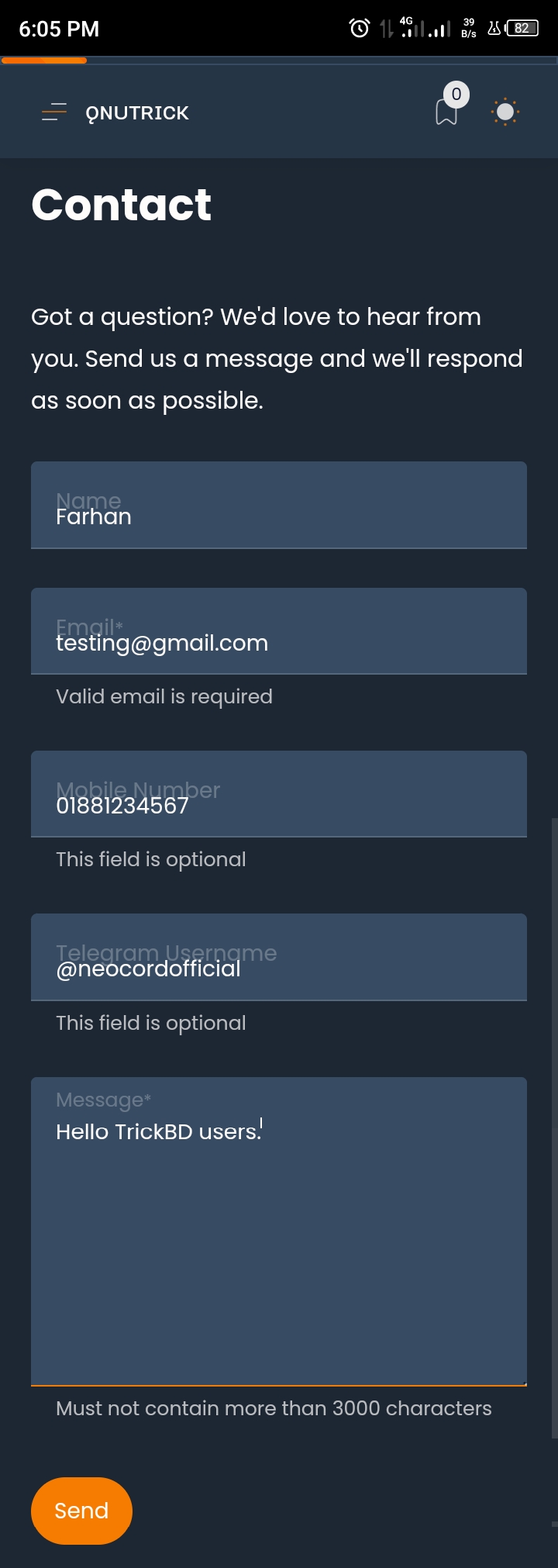
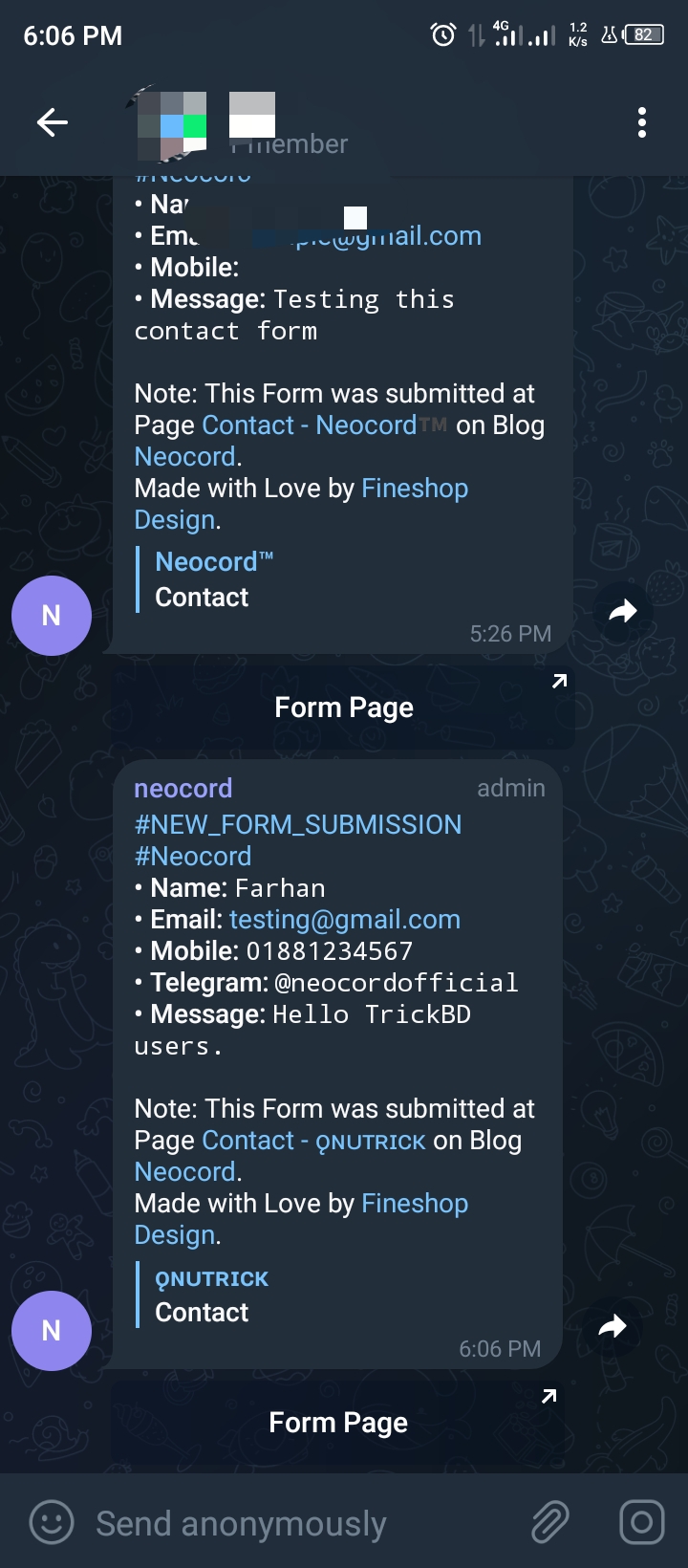
Install Process :
Step 1: FirstThis is the linkCopy the codes from .orBy clicking hereDownload the codes.
Step 2: Now we need a Telegram bot and a Telegram group. Make sure to keep the group private. Because you definitely don't want anyone else to see the mails of your site users. Keep the Telegram group private. Once the Telegram bot is created, the bot Add it to the group you created.
Step 3: I hope you have created a Telegram group and a Telegram bot. It is not something to show, so I did not see it. Now open the above codes with a code editor. Then replace the bot token with your newly created bot as shown in the screenshot below. Give the token and paste your group ID without any space next to 100 without cutting 100 of the 100 group ID . To get the group IDTelegram WebGo to this. Then open your newly created group. Then you will get the 10 digit code of your group in the address bar. Make sure it is 10 digits. Because if it is a 9 digit code it will not work in this form. Why is it not working? Still unknown to me.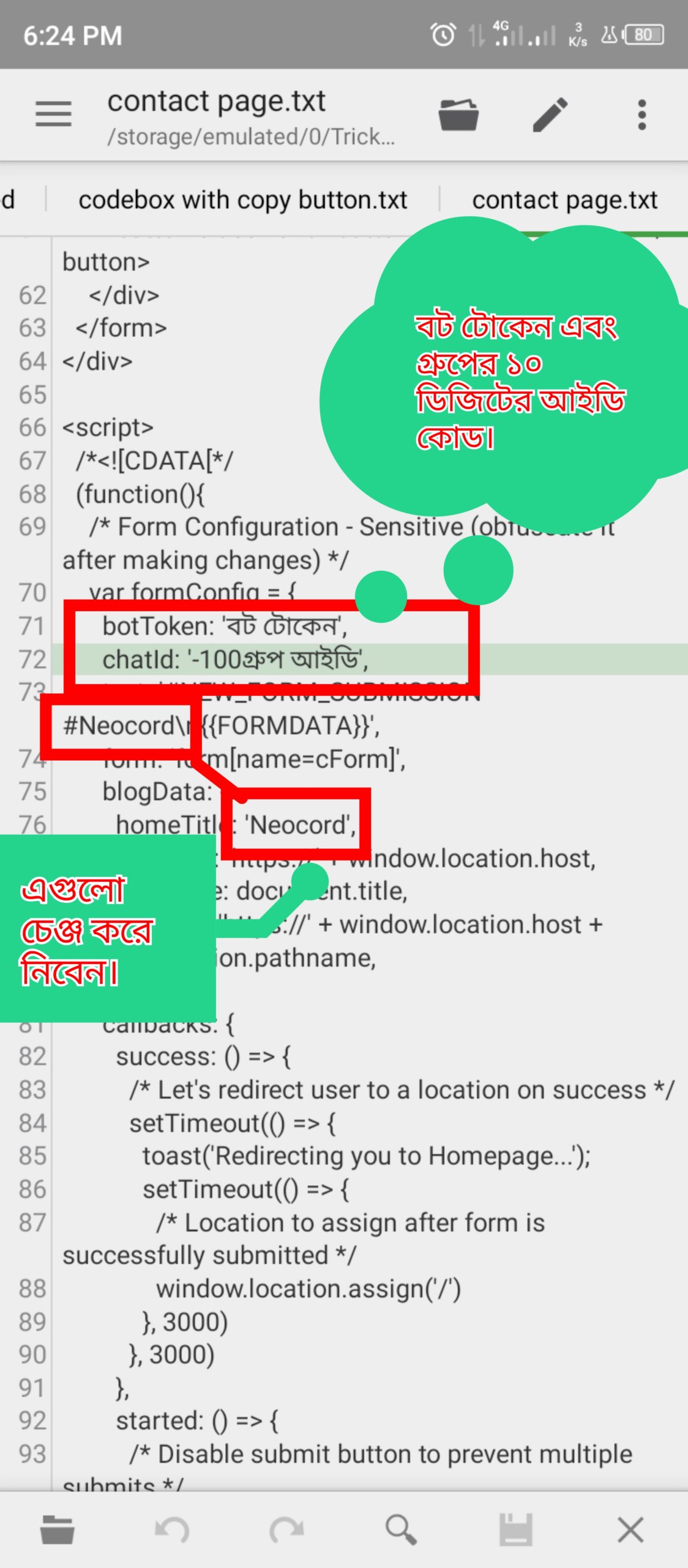
Step 4 : Now copy all the codes.
Step 5: Go nowBloggerDashboard. Then go to Pages .
Step 6 : Now create new contact page. Or, edit your previous contact page.
Step 7: Then VIEW HTML.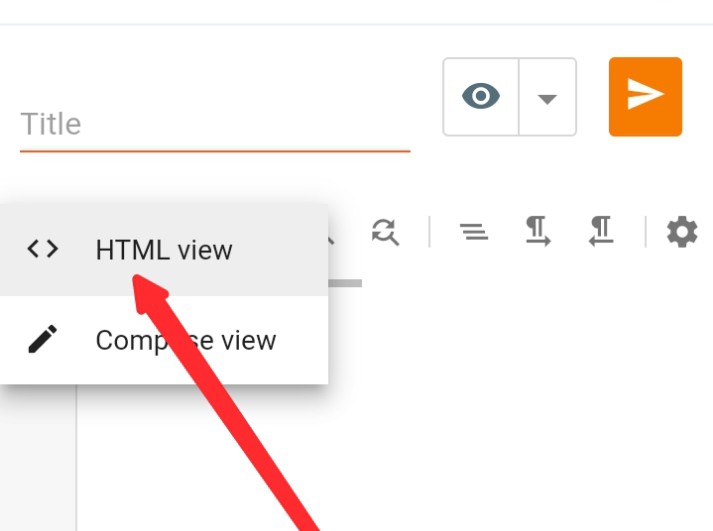
Step 8 : Now paste the codes. Then publish the page.