There are many of us who wish to use our own image or band logo in the profile section of our website; Also, at different times in the work of the client, I can set the profile with his own picture and give it as a gift to the client.
Through today's discussion, I will show that you can do this very easily.
Note: We can basically use 3 ways to do this, ie – by using plugins.Through custom coding.By creating an account on gravatar.com.
As a web developer we all know that custom coding is the first choice for a developer; And so today we will learn how to use Gravatar images through custom coding. [FOR BEGINNERS]
Today's topic of discussion:
How to Change WordPress Gravatar/Profile Picture – How to Change WordPress Gravatar/Profile Picture – WordPress.
Note: Don't forget to let us know if you have any question - opinion - or any other topic you want to write about.
Let's start:
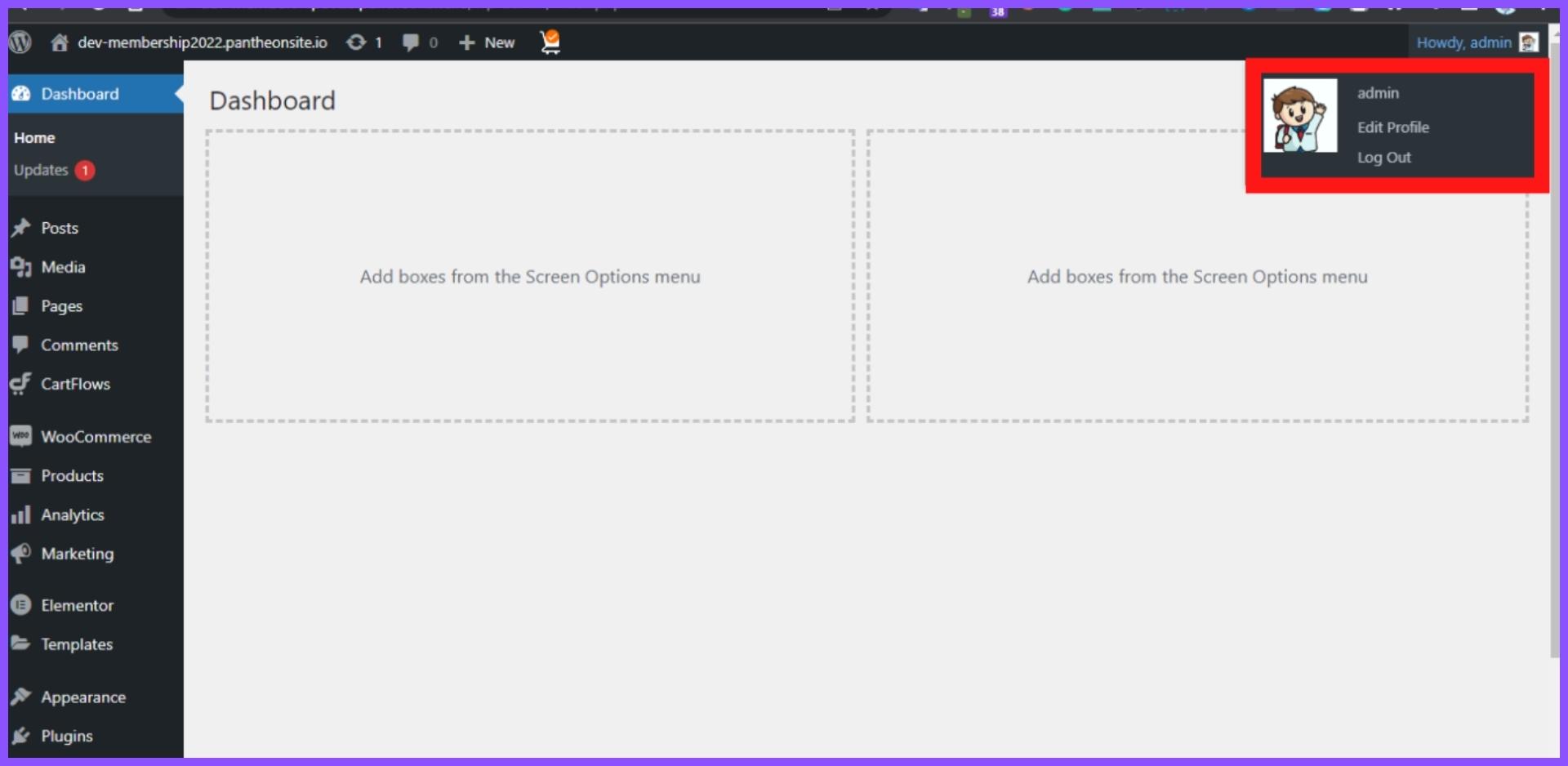
Start working by following the screenshot:
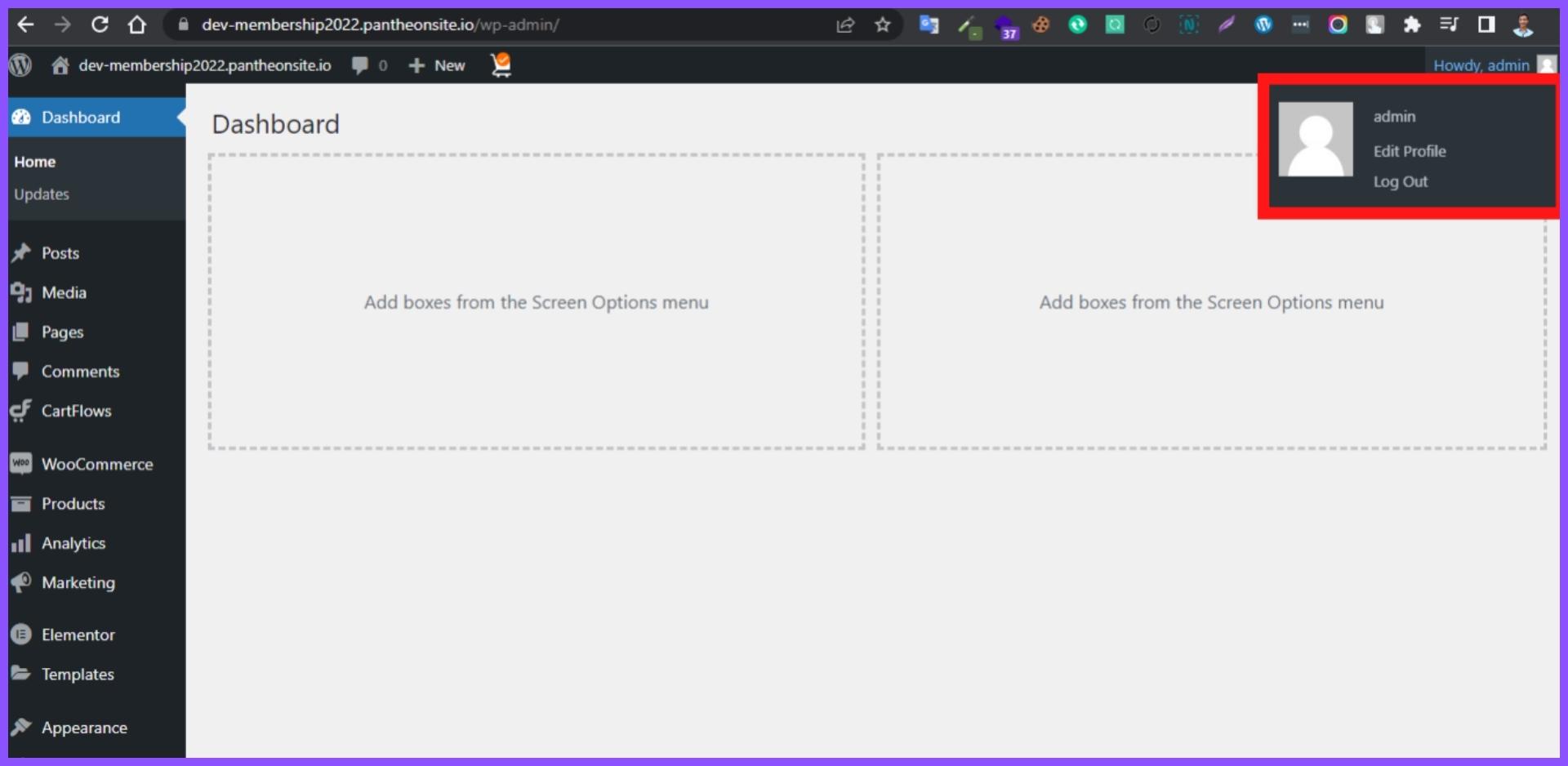
To add the default GRAVATARS image to our website we will first go to Media.
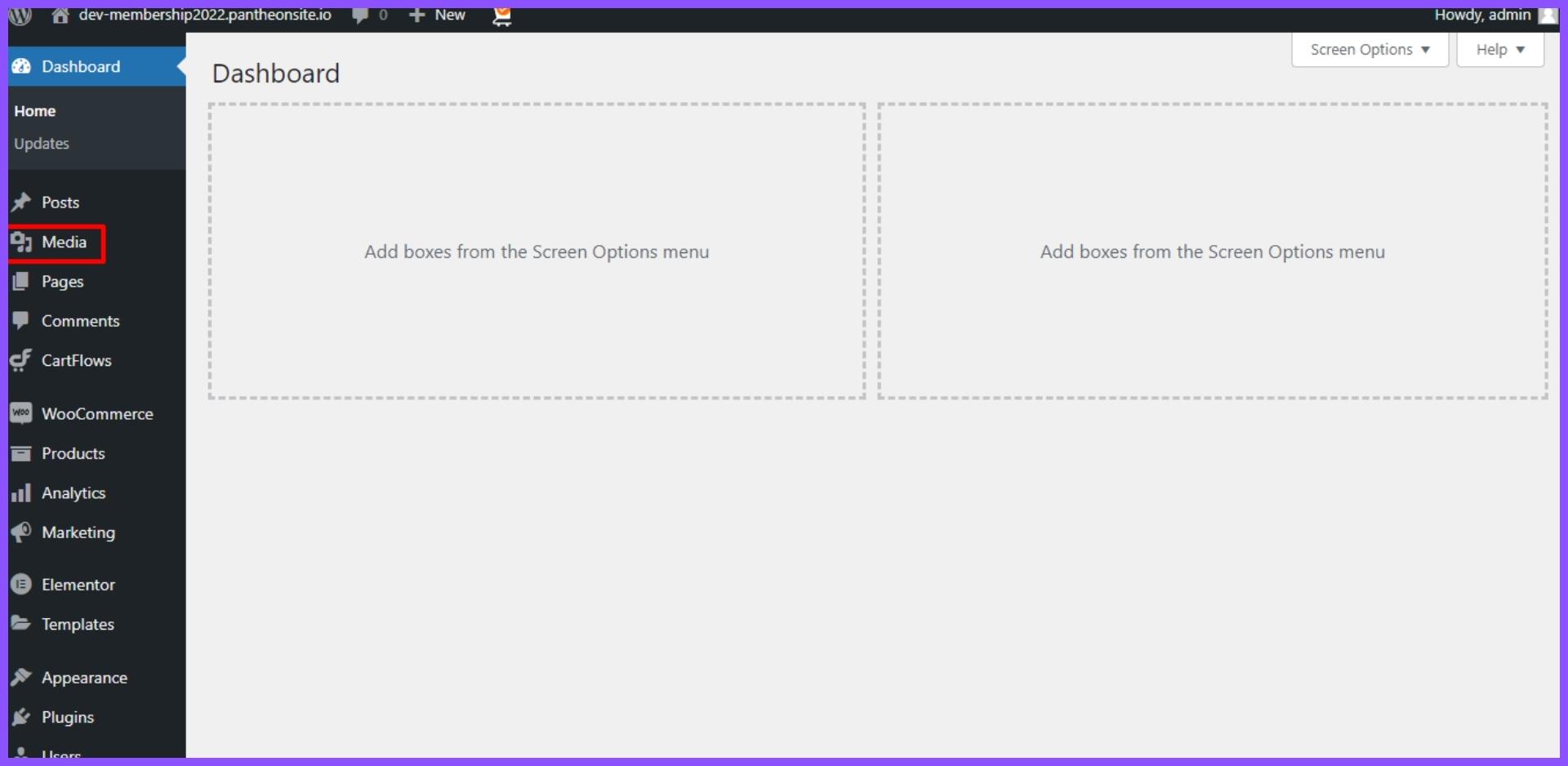
- Then click on select file.
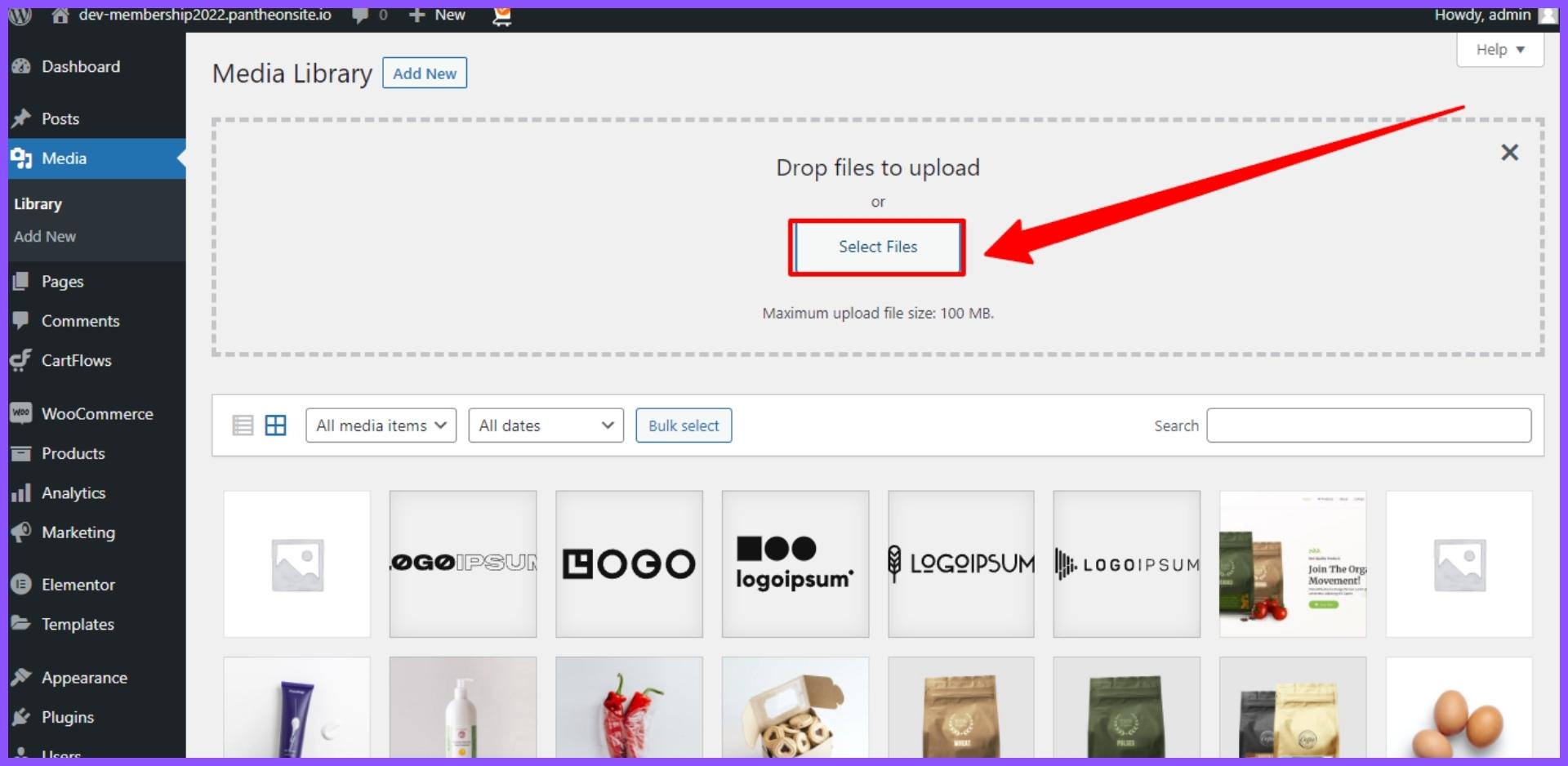
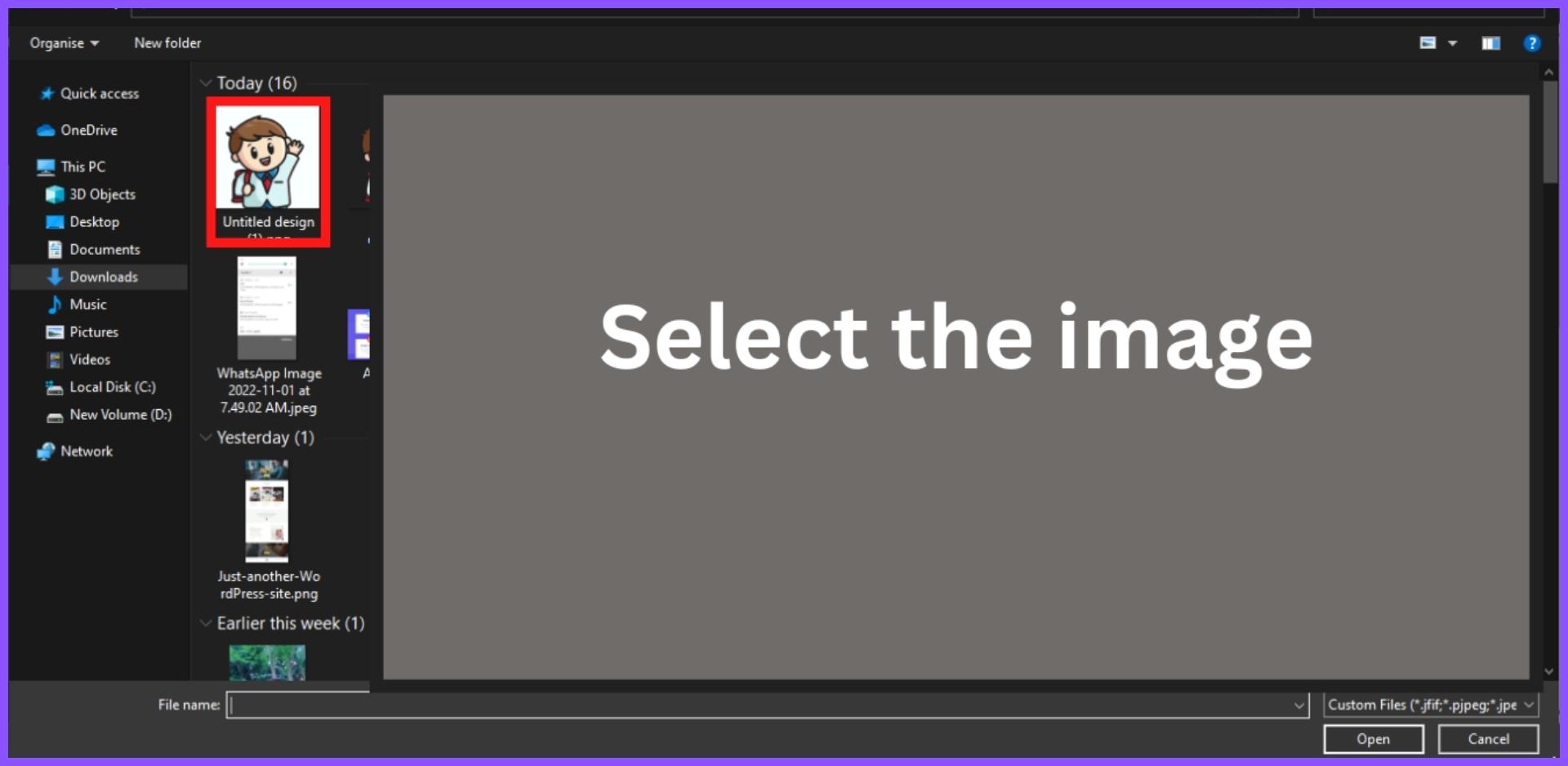
From here select the desired image. And when the upload is complete, I will copy the image link.
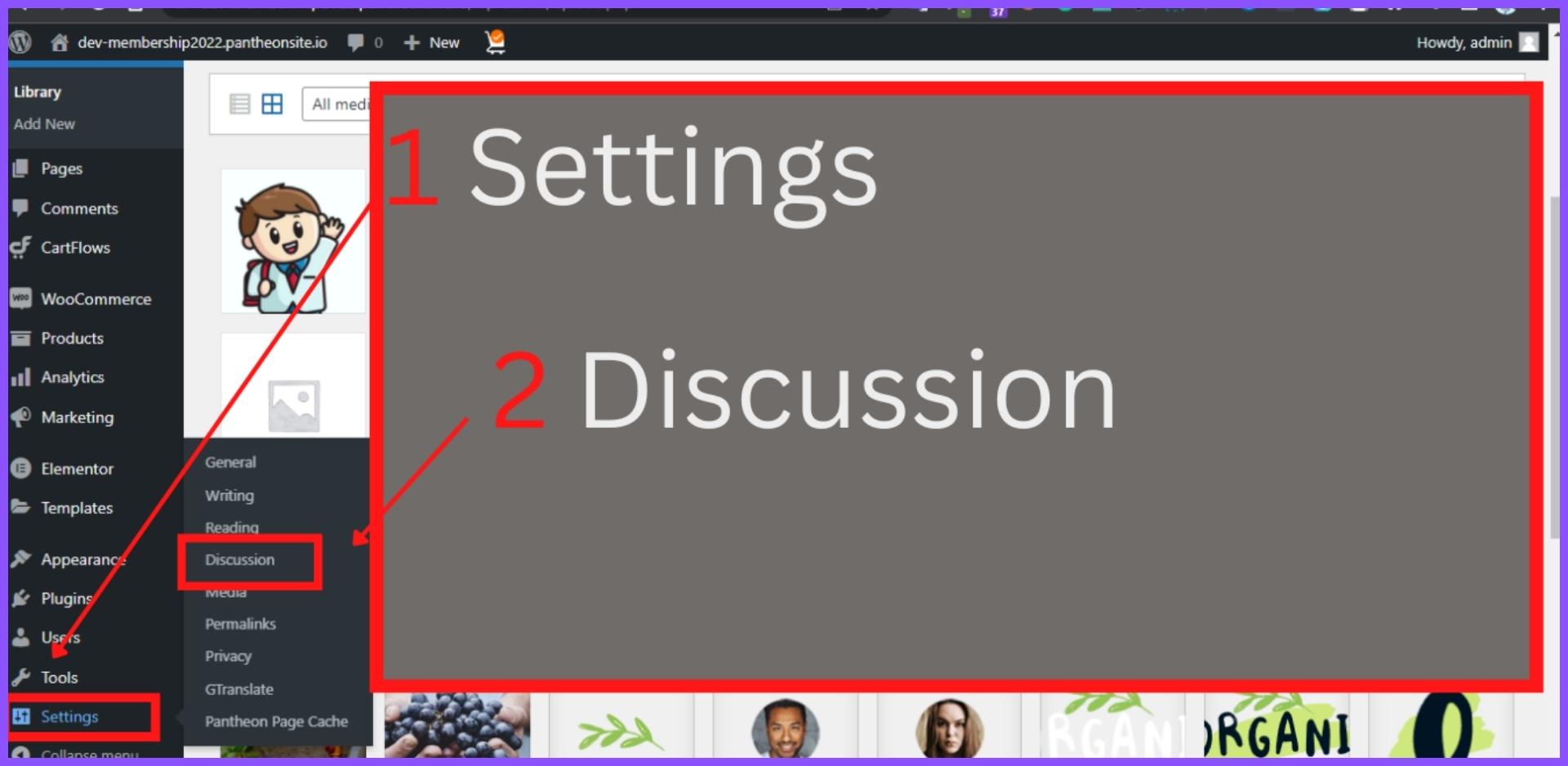
- Now go to DISCUSSION from SETTING .
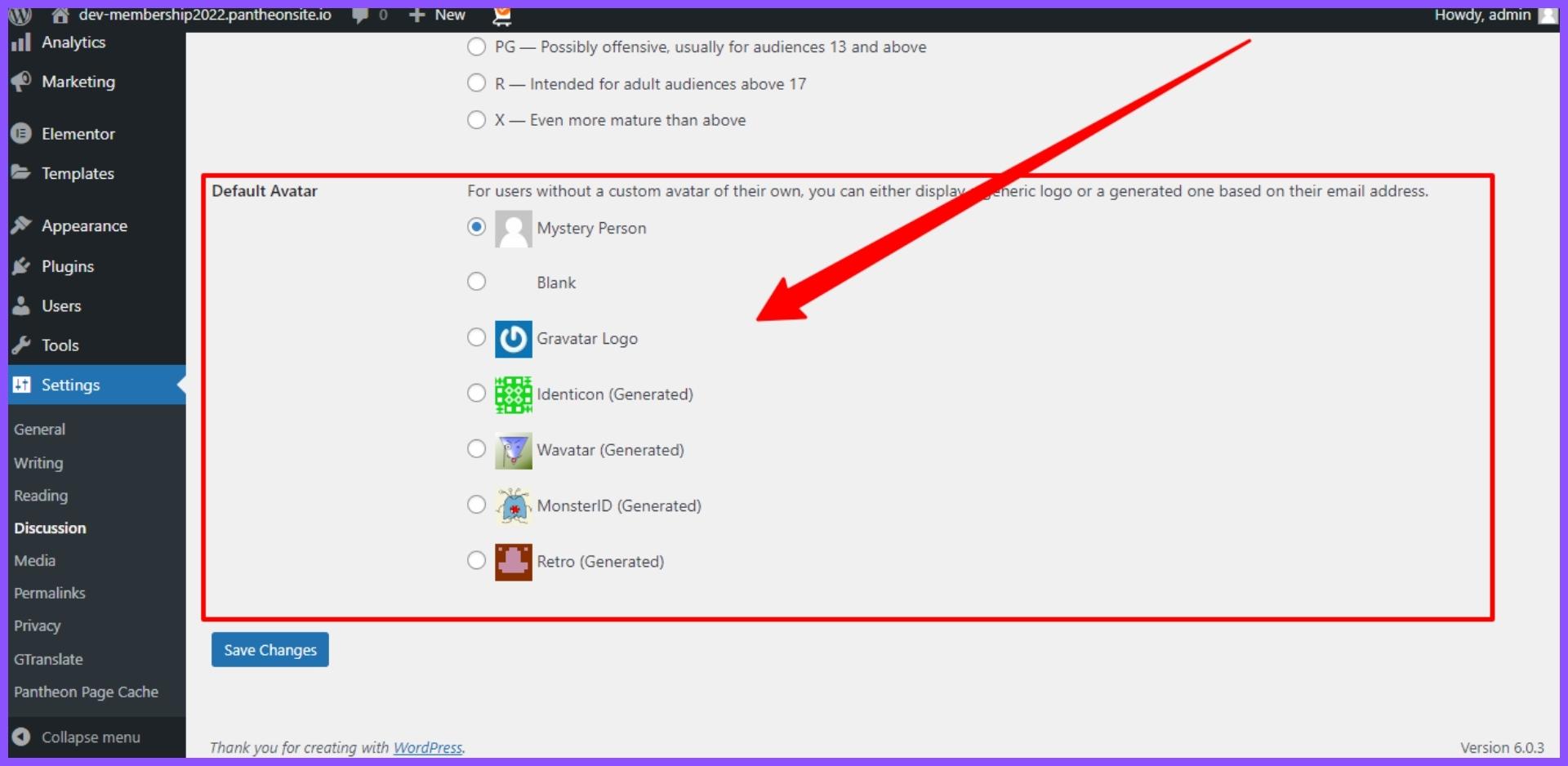
You can see here are the default gravatar images provided by WORDPRESS .
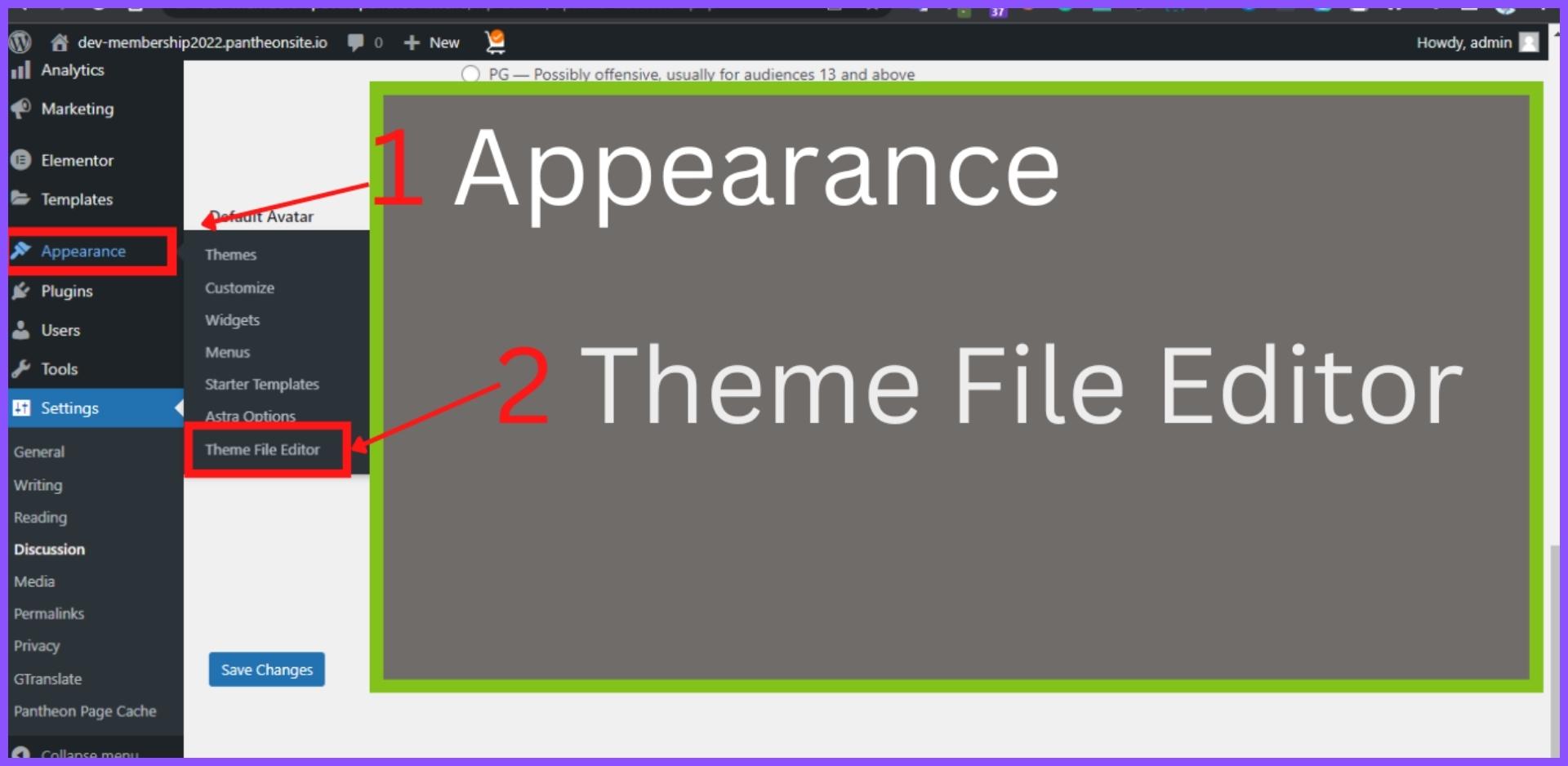
Now to add our custom gravatar image. The file needs to be edited in the theme file of our website. Before editing you must backup your website. We will move from APPEARANCE to THEME FILE EDITOR .
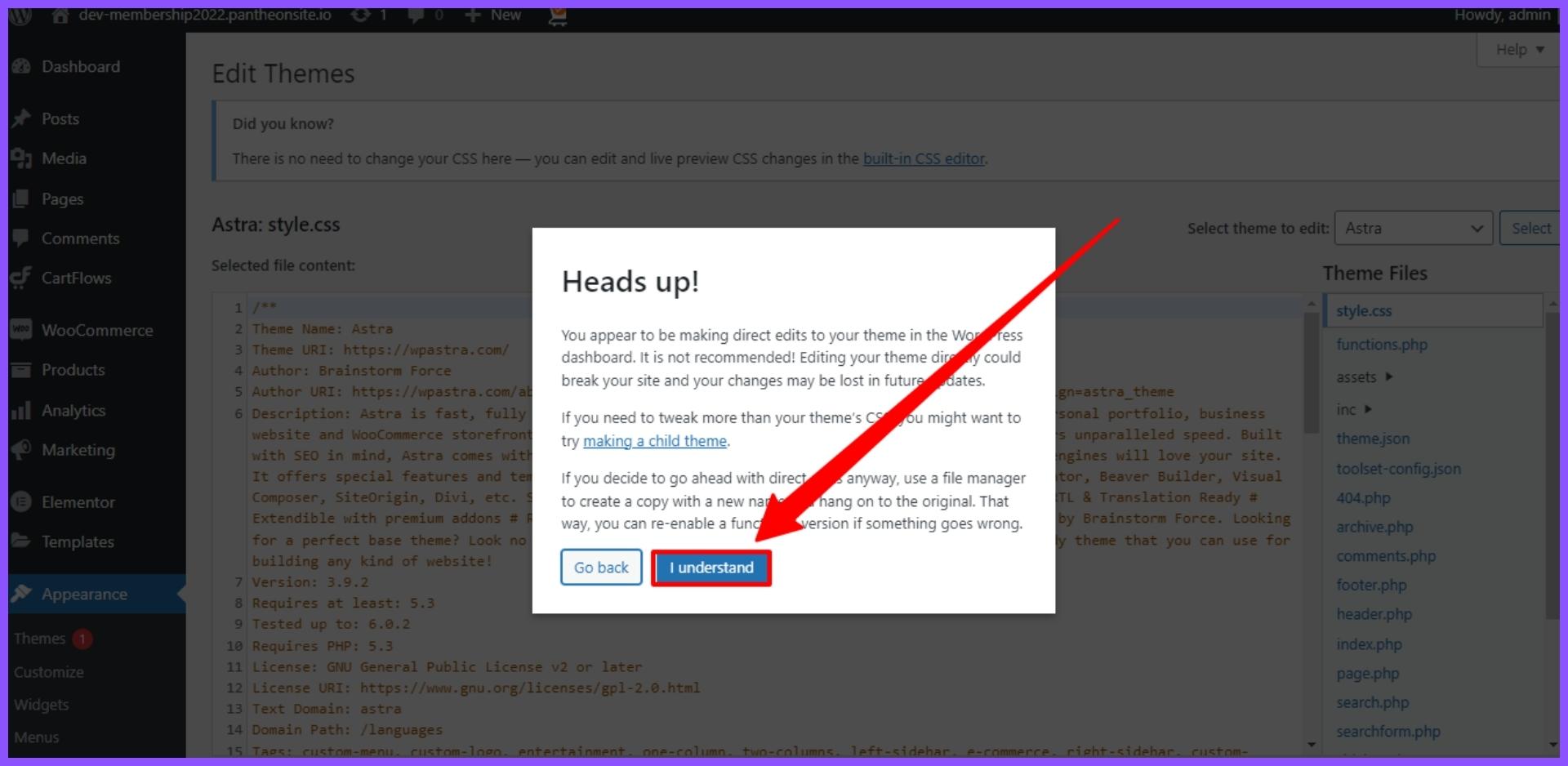
- From here click on I UNDERSTAND .
- Click on functions.php .

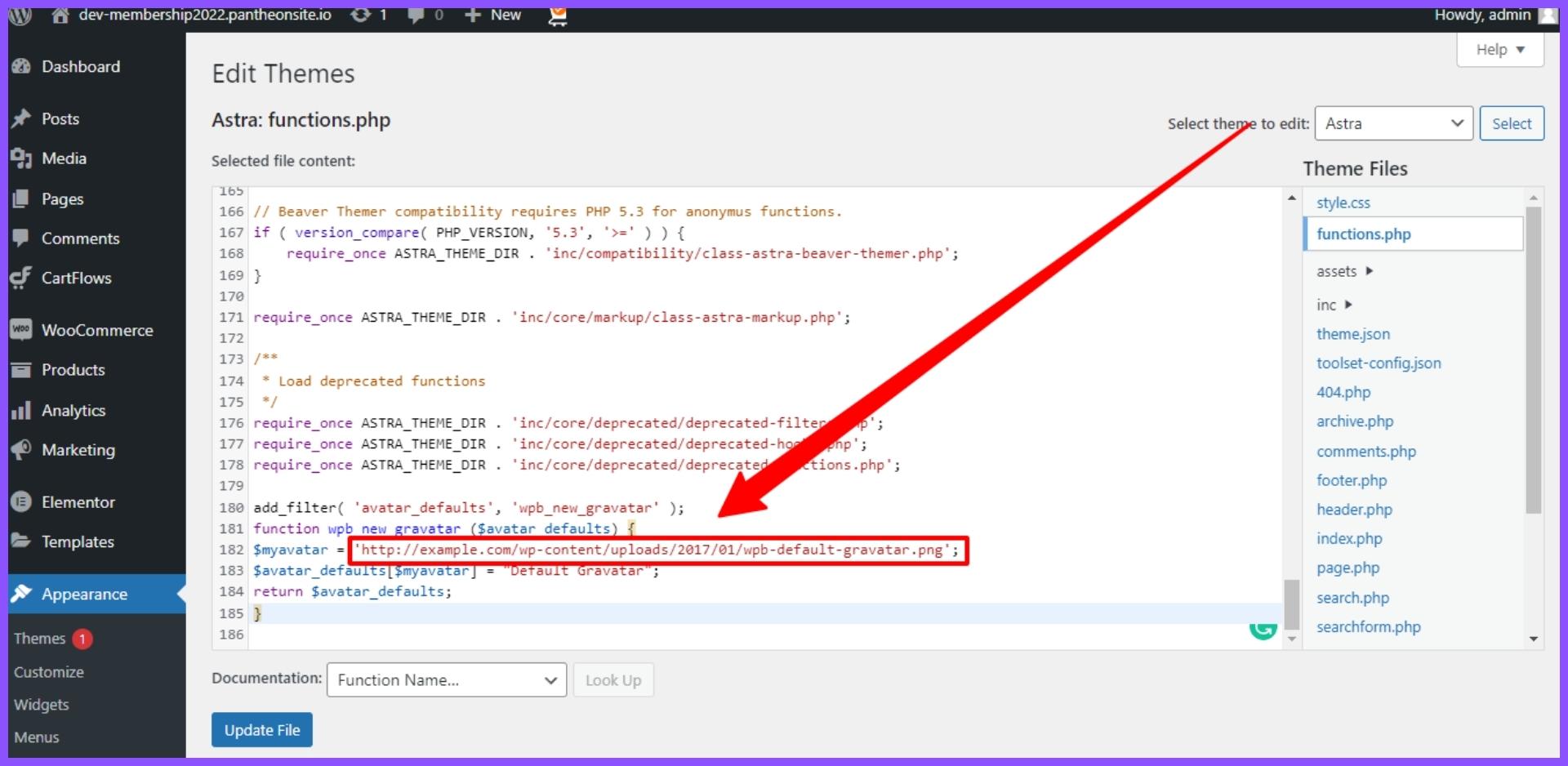
- From here scroll completely down and finally this CODE [The code link is given] should be pasted. You can also see screenshots.
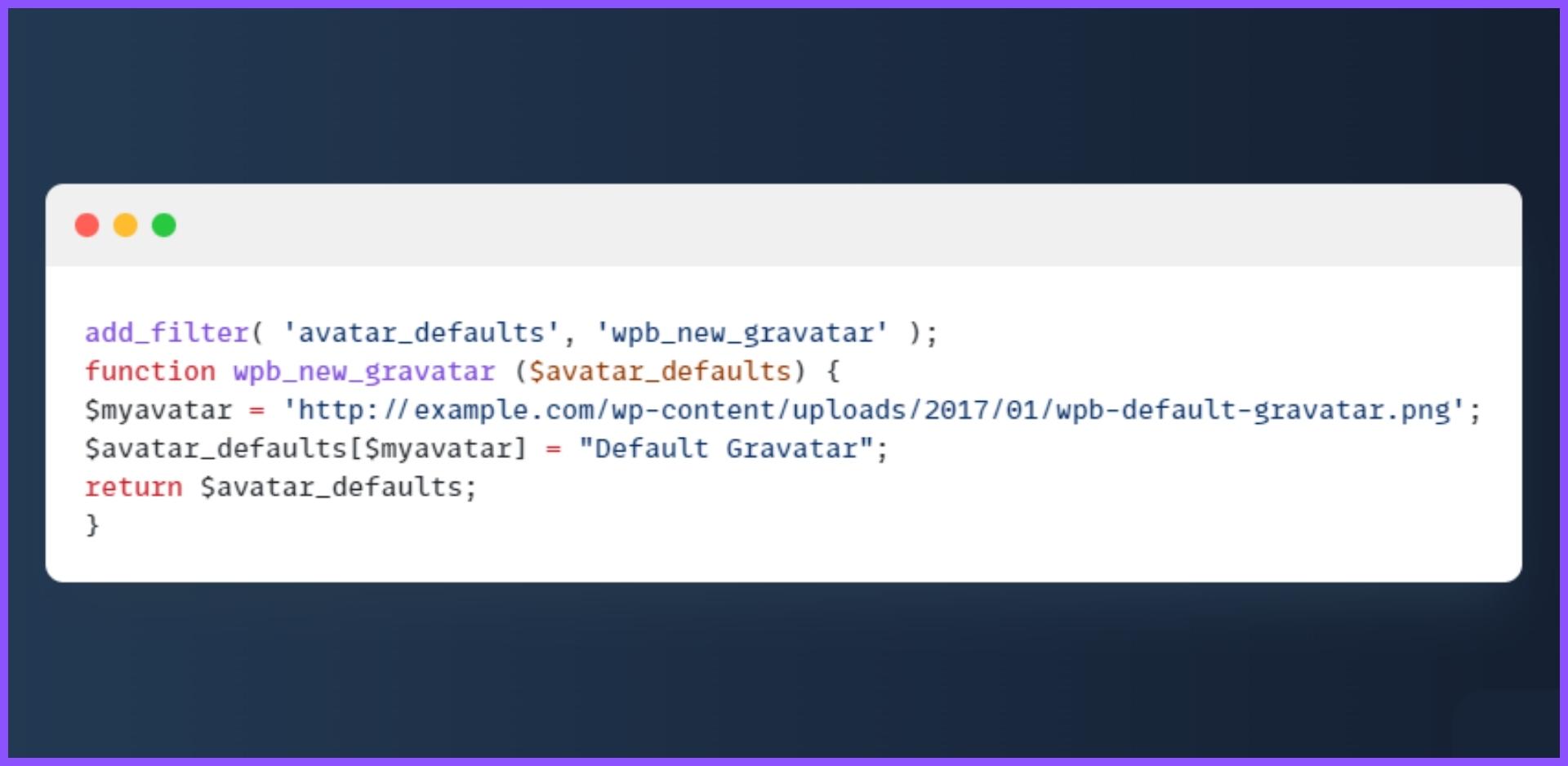
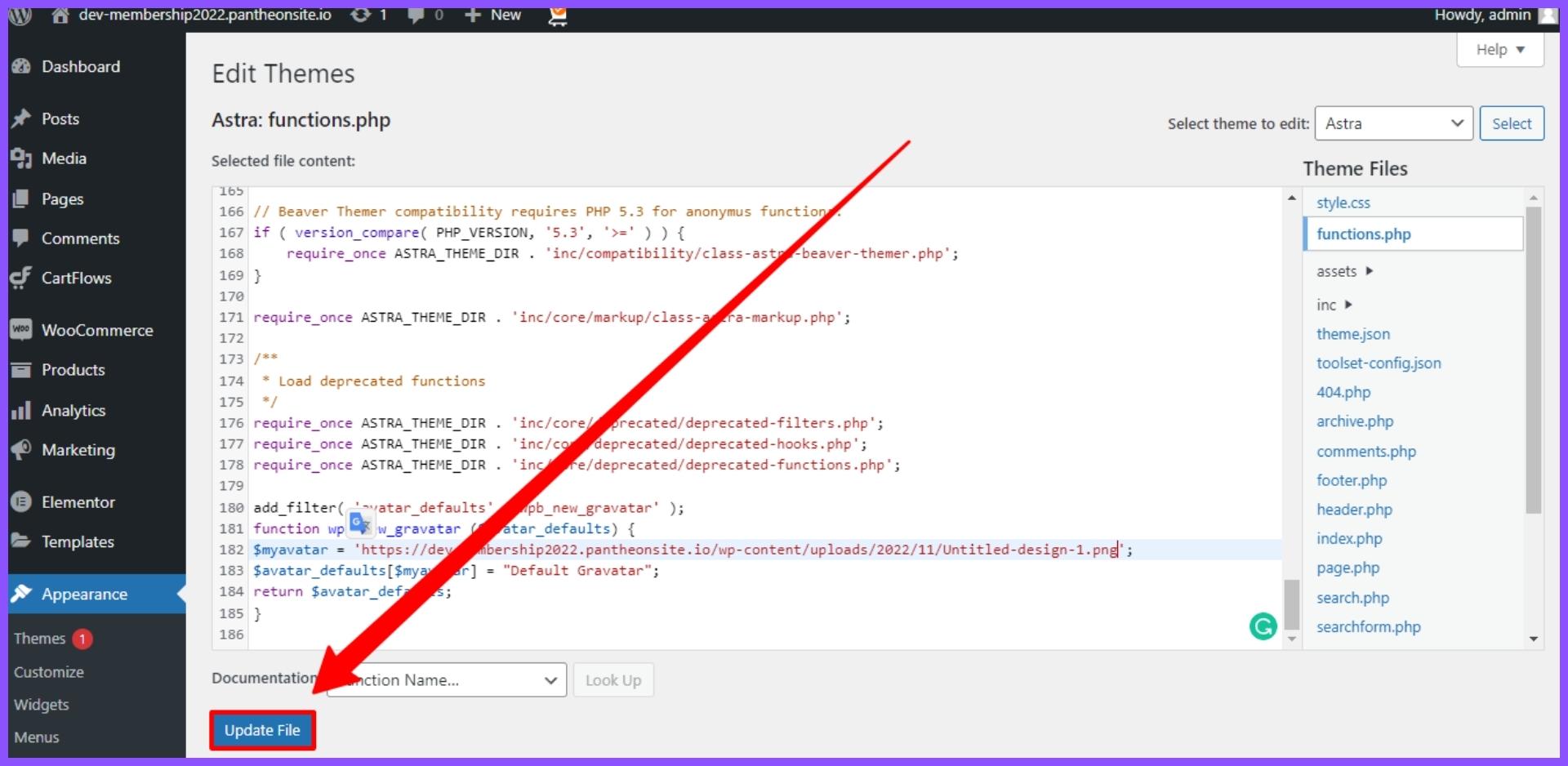
- Then we have to copy the URL of our image at the beginning of the post and give it inside the quotation EXAMILE . See screenshot.

- After adding the code, click on UPDATE FILE .
Now go to DISCUSSION from SETTINGS .

- You can see our custom image has been added here. Now select the image and click on SAVE CHANGES .
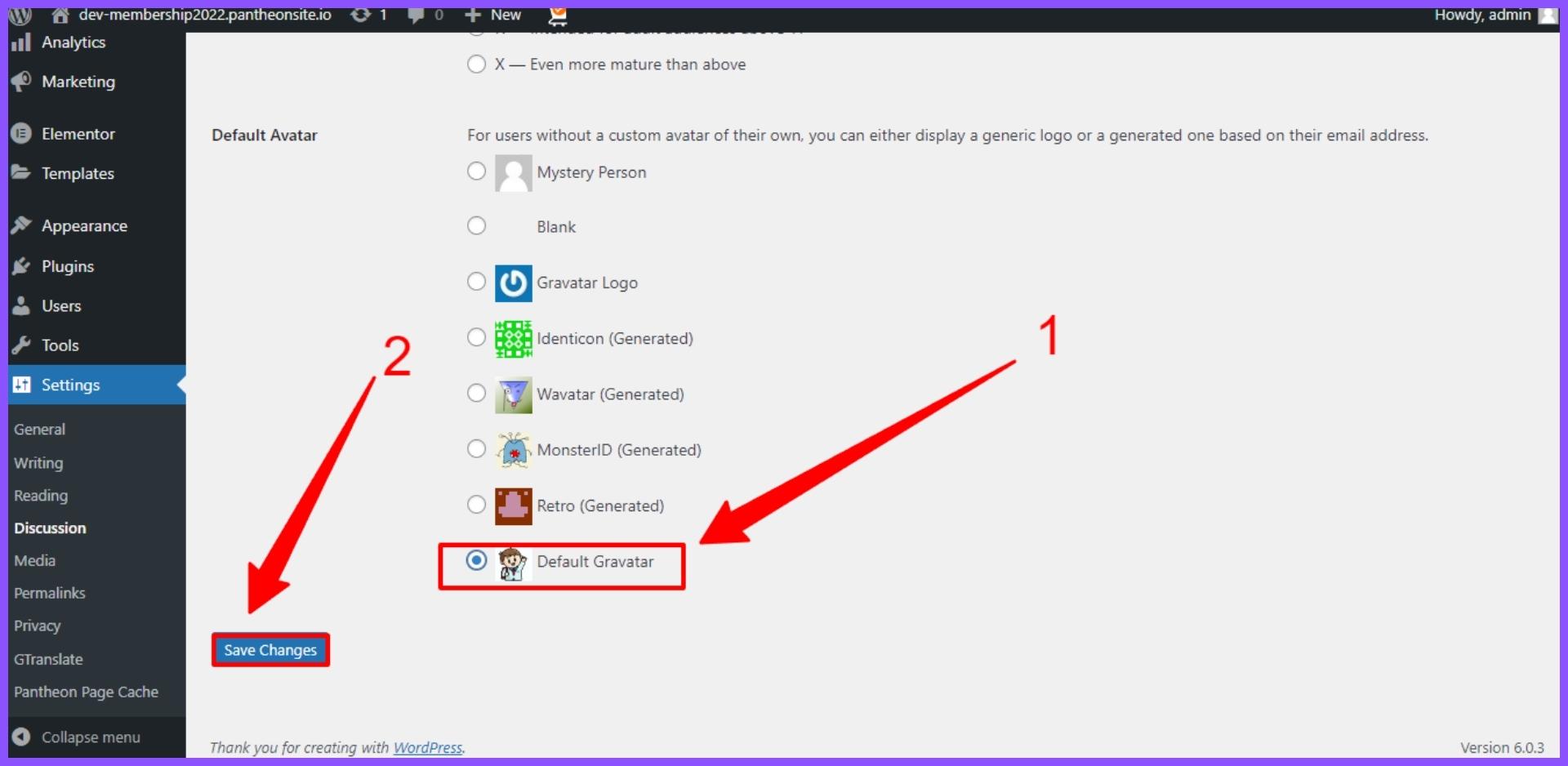
- Finally our custom image is added here. ???
I have tried to discuss the topic as much as possible in the post, but if you have any difficulty in understanding or if you are interested in knowing more about this topic, we have a YouTube video on this topic, you can watch the video if you want.
Application:
If there is a mistake, everyone is encouraged to behave in a forgiving manner. And of course, don't forget to tell us on the Facebook page to correct the mistakes. We are expecting comments in beautiful and tasteful language from everyone.
If someone gets even a little benefit from this tutorial, my trouble will be worth it.
Finally I want to say one thing _ I am just sharing what I know with you so that I can teach others something through this tutorial and catch my mistakes and I can learn something new.
Thanking everyone